Claude in Chrome can do more than summarize a page. It can use your browser session to click, type, move between tabs, and submit information.
Short answer: Claude in Chrome is Anthropic’s browser extension for giving Claude access to websites in Google Chrome. Install the official extension from the Chrome Web Store, sign in, then use its side panel or connect it to Claude Code with claude --chrome. It is available on paid Claude plans, but browser content can include private data and can contain malicious instructions. Start with a separate profile, use manual approval for consequential tasks, and keep banking, health, and sensitive work accounts out of reach. Availability and safety details checked November 2026.
What is Claude in Chrome?
Claude in Chrome is an extension that lets Claude read pages and operate a real browser. You can ask it to find information across tabs, fill a form, or test a site you’re building; it can click and type while you watch.
The difference from ordinary chat is access. Claude can use pages that require a login because the extension works through your browser. In Claude Code, it can also inspect page state and console errors while you build and test an app. Anthropic describes this as a build, test, and debug loop in its Claude Code browser guide.
Here is the trust boundary:
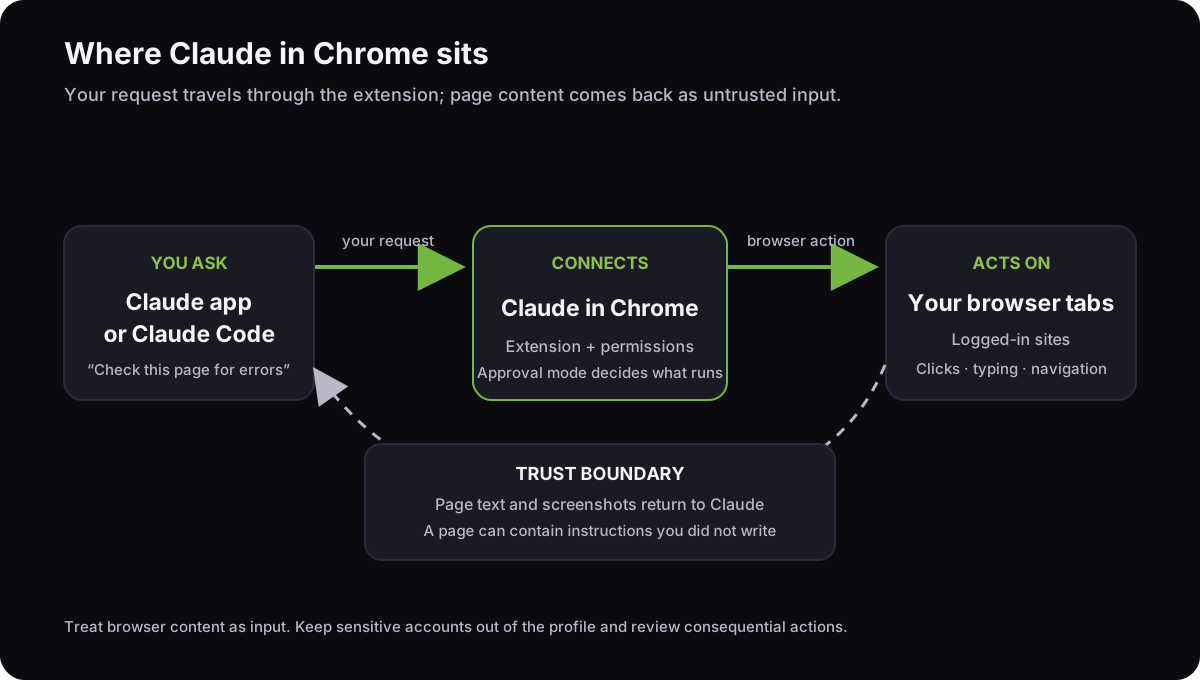
Page content is input, not authority. A website, email, or document may contain instructions written to manipulate an AI agent. Claude’s job is to follow your request, but it still has to interpret material that you didn’t write.
Which plans and browsers support Claude in Chrome?
As checked November 2026, Anthropic lists Claude in Chrome for Pro, Max, Ultra, Team, and Enterprise paid plans. Enterprise access may require an admin to enable the feature. The consumer side panel supports Google Chrome, not mobile or other Chromium browsers, according to Anthropic’s current setup guide.
The Claude Code browser integration has a wider browser list than the consumer side panel. It works with Google Chrome and Microsoft Edge, and its docs also list Brave, Arc, Vivaldi, and Opera. It doesn’t work in Windows Subsystem for Linux. This distinction matters if you searched for a “Claude in Chrome extension” and use Edge: the Claude Code integration may work there, while the consumer side panel is documented for Chrome.
Claude Code requires a direct Anthropic login for this integration. The current docs say API-key and third-party-provider sessions don’t connect to the extension. Check your organization’s settings if the option is missing; administrators can restrict access and the sites it may reach.
How do I install the Claude in Chrome extension and use it with Claude Code?
For the side panel, install the official extension named Claude from Anthropic in the Chrome Web Store. Sign in with your Claude account, grant the browser permissions, then click the Claude icon and describe the task. Pin the extension from Chrome’s puzzle-piece menu if you want it in the toolbar. The official store listing identifies Anthropic as the publisher.
For a coding workflow, use Claude Code with Chrome: install Claude Code and the same extension, log Claude Code in with /login, then start a session with the browser enabled:
claude --chrome
On first use, Claude Code shows a one-time dialog about site permissions. At the Claude Code prompt, use /chrome to inspect connection status, manage site permissions, or reconnect. You can also enable the browser by default from /chrome; turning it on permanently loads browser tools in each session. The command is documented in Anthropic’s Claude Code browser instructions.
In our local check on November 8, 2026, Claude Code 2.1.319 listed both --chrome and --no-chrome in claude --help.
For a local app, ask Claude to open its development URL, exercise one user flow, and report any console errors before it edits code. Then ask it to repeat the flow after the change. The documentation describes this workflow; we did not run it as part of this article.
If it can’t connect, check these failure modes:
| Symptom | First fix |
|---|---|
Browser extension is not connected |
Confirm the extension and Claude Code use the same account and organization. Restart Chrome and Claude Code, then run /chrome and choose Reconnect extension. |
Receiving end does not exist |
The extension service worker may have gone idle. Run /chrome and reconnect the extension. |
No tab available |
Ask Claude to open a new tab, then retry the browser action. |
Anthropic documents these remedies in its troubleshooting section. A Claude Code issue shows browser tools can stay unresponsive after the documented steps, and a Reddit report describes Claude Desktop calling the extension disconnected while both were signed in to the same account.
If the documented reconnect steps fail, capture the error and report it; don’t keep granting broader site access as a connection fix.
Is Claude in Chrome safe with accounts where I’m logged in?
Treat it as an agent with the same browser access you grant it, not as a read-only page summarizer. Anthropic says the extension shares your login state and captures screenshots of the tabs it’s using; its store listing describes multi-tab workflows. Visible page information enters the conversation, so a logged-in session may expose personal or work data to Claude.
Use this three-part check before you start:
| Check | Ask yourself | Safer choice |
|---|---|---|
| Data | Could this page show credentials, health details, financial records, or confidential work? | Use another browser profile without those accounts, or do not use Claude on that page. |
| Instructions | Could an email, document, ad, or user post contain instructions you did not write? | Limit the task to trusted sites and stop if Claude changes topic or opens an unexpected page. |
| Action | Could a click send a message, change a record, spend money, or publish something? | Choose Manually approve and check each step. Do not delegate irreversible actions. |
Anthropic reports an attack success rate below 0.08% in its internal evaluation combining known prompt-injection techniques. That’s Anthropic’s own test result, not an independent estimate of the risk for your site or task. A low score doesn’t make a malicious page safe. Its safety guide recommends avoiding financial, medical, legal, and sensitive work pages, and explains that screenshots of visible content become part of the conversation.
Choose an approval mode deliberately. Manually approve asks before each action. Automatically approve, the Cowork side panel’s default, screens actions and pauses when it flags a risk. Skip all approvals disables those prompts and automatic checks. Anthropic’s permissions guide says to reserve that last mode for tasks where you trust every action and connected site.
An approval prompt is still not a substitute for scoping access. Put only the accounts needed for the task in the browser profile, grant access to one trusted site at a time, and stop the task before sending, buying, deleting, or publishing. Anthropic’s classifiers reduce risk; they don’t turn a logged-in browser into a sandbox.
Which browser should I give a coding agent?
Choose Claude in Chrome when the task needs your actual signed-in browser. Choose Playwright MCP for repeatable runs across Chromium, Firefox, and WebKit; Chrome DevTools MCP for Chrome debugging and performance tools; and a browser-integrated MCP when you want an agent to work through a dedicated browser session.
| Option | Browser and profile | Setup and approval | Definition tokens | Platform |
|---|---|---|---|---|
| Claude in Chrome | Your extension-enabled browser and its existing login state | Install the extension and sign in. Claude’s approval modes and site permissions control actions. | Not measured in our comparison | Chrome side panel; Claude Code supports Chrome, Edge, Brave, Arc, Vivaldi, and Opera. |
| Chrome DevTools MCP | Its own persistent Chrome profile by default, separate from your everyday one; can connect to a running Chrome instead | Add an MCP server. Your MCP client handles tool approvals; connecting to a running Chrome with --autoConnect also shows a Chrome permission prompt. |
10,972 for 32 tools | Chrome or Chrome for Testing; Node.js LTS. |
| Playwright MCP | Its own persistent profile by default; --isolated for fresh state; its browser extension attaches to existing tabs |
Add an MCP server. Your MCP client handles tool approvals; choose your profile and capabilities explicitly. | 6,747 for 25 tools | Chromium, Firefox, or WebKit; browser and client support vary. |
| Octoweb | Dedicated browser with separate workspaces and persistent site sessions per workspace | Its local MCP server exposes browser tools; approvals come from the MCP client, not Octoweb itself. | Not measured in our comparison; 44 tools | macOS 13 or later; Apple Silicon and Intel. |
The token figures are tool-definition estimates from two identical Claude Code 2.1.319 runs on November 8, 2026, in an empty directory with one server configured. They’re not total task tokens or a quality score. Both MCP sets were deferred, so Claude Code didn’t load the definitions until tool search.
We measured Chrome DevTools MCP 1.12.0 at about 11k tokens and Playwright MCP 0.0.84 at about 6.7k; an earlier Playwright MCP run, and the method for separating definition and result tokens, are in our MCP token guide. We did not measure Claude in Chrome or Octoweb definitions in the same setup.
Chrome DevTools MCP and Playwright MCP are open-source server packages that can connect to compatible clients; using them with Claude Code still requires your normal Claude Code access. Octoweb is free under Apache-2.0. The MCP specification says implementations choose the user interaction model and recommends confirmation prompts. Before allowing browser actions, check whether your client actually pauses for approval.
For your first comparison, keep the app, user flow, and MCP client fixed. Change only which browser path the agent controls; then note whether it can reach the right session and which approval prompts appear.
We build Octoweb, a macOS browser with an MCP server inside it. Its workspaces keep cookies and AI sessions separate, and its server exposes 44 tools in version 0.21.0. It has no built-in per-action approval gate, so configure approvals in your MCP client. Choose it when you want a dedicated browser profile for agent work; keep using Claude in Chrome when you need the browser and account state already open in Chrome.
If you want a broader checklist for limiting what an agent can reach, see our guide to giving an AI agent a filesystem safely. The same rule applies to browser access: give the agent only the data and actions the task needs.
Start with a low-risk task on a separate profile. If the task needs sensitive data or an irreversible action, keep it manual or use a narrower integration that exposes only the required fields.
— Don
We build open-source tools for focused browser and coding workflows. Explore Octoweb on GitHub or tell us which browser boundary you would like to see documented next.