If you searched “caffeinate Mac,” you probably have a download, build, render, or remote session that should keep running after you walk away. The measured output came from macOS 26.7.2. Closing a MacBook lid is a separate sleep path, so one caffeinate command does not cover every setup.
Short answer: On macOS 26.7.2, run caffeinate -i make to keep the Mac from idle-sleeping until a command ends, or caffeinate -i -t 3600 for one hour. The display can still sleep with -i. Closing the lid is a separate, forced sleep: of caffeinate's flags only -s can apply to it, it works only on AC power, and Apple doesn't document the closed-lid case, so test it on your Mac before you rely on it. For Apple's supported Mac clamshell mode, connect power, an external display, a keyboard, and a mouse. Check active blockers with pmset -g assertions.
How does the caffeinate Mac command work?
caffeinate asks macOS for power assertions; it does not rewrite your sleep timers. The default and -i prevent idle system sleep, while -d targets display sleep. Apple's caffeinate manual lists the caffeinate flags; Apple's idle-system assertion reference explains why that assertion does not override lid-close sleep.
| Flag | Assertion or action | What it prevents | AC-only? |
|---|---|---|---|
none or -i |
PreventUserIdleSystemSleep | Idle system sleep; display may still sleep | No |
-d |
PreventUserIdleDisplaySleep | Display idle sleep, and therefore idle system sleep | No |
-m |
PreventDiskIdle | Disk idle sleep | No |
-s |
PreventSystemSleep | System sleep while on AC power; Apple doesn't say whether that covers a closed lid | Yes |
-u |
UserIsActive | Declares user activity; can wake display; 5-second default | No |
-t seconds |
Timer modifier | Releases the selected assertion after N seconds | No |
-w PID |
Process wait modifier | Holds the selected assertion until PID exits | No |
Apple’s open-source caffeinate implementation maps each flag to its named assertion; Apple’s IOKit assertion reference separates display-idle and system-sleep assertions.
We checked -i on our own Mac on November 8, 2026: pmset -g assertions listed PreventUserIdleSystemSleep for caffeinate, with the three-second timer counting down. Apple notes system sleep can still happen during low power or a thermal emergency.
How do I keep the Mac awake only while a command runs?
Put caffeinate -i before the command. The assertion lasts as long as that command does, then normal idle sleep can resume; this is the simplest choice for a build or render.
caffeinate -i make
Replace make with the command you need, such as npm run build or python train.py. Expected result: the command runs in the foreground, and the Terminal prompt returns when it finishes. The manual documents this exact pattern; this recipe is docs-only, not a run in our measurement set.
For an existing process, find its PID in Activity Monitor or with your usual process tool, then use:
caffeinate -i -w 12345
Replace 12345 with that process's numeric PID. Expected result: Terminal waits until that process exits, then returns the prompt. This is also docs-only.
For a one-hour window with the lid open:
caffeinate -i -t 3600
The value is seconds, so 3600 is one hour. Stop an indefinite or process-bound session early with Control-C in the Terminal window running caffeinate. The -t command ends on its own. The manual documents these flags; it is dated 2012, and the same page ships with macOS 26.7.2.
If the screen itself must remain on, use -d too. The often-copied caffeinate -dimsu has a catch in Apple's source. When -u has no -t, the code sets a 5-second timeout and keeps it for every assertion created after the user-activity one — in its table, only the disk assertion (lines 52–57 and 208–209 of caffeinate.c). So -m lapses after five seconds while -d, -i, and -s stay until you press Control-C.
Drop -u unless you need the display woken now: caffeinate -dims holds all four. We read this in the source; we did not time it.
How do I keep a Mac awake with the lid closed?
Choose by power source first. A Mac sleeps when the lid is closed through a different path from idle sleep, as Apple's idle-system assertion documentation spells out.
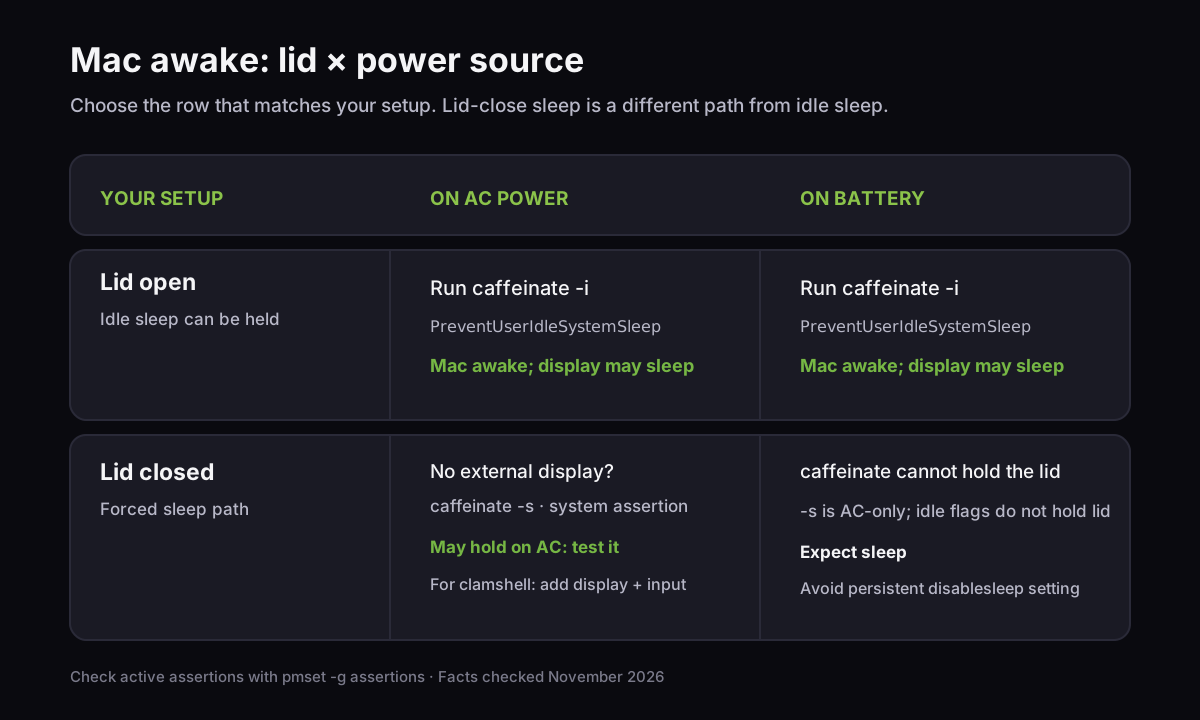
| Setup | What to do | What happens |
|---|---|---|
| Lid open, AC or battery | Use caffeinate -i for an idle-bound job |
Mac stays running; display may sleep |
| Lid closed, AC, no external display | Run caffeinate -s, then run the test below once |
The system-sleep assertion is the one hold that can apply; Apple doesn't document this case |
| Lid closed, AC, external display | Connect power, display, keyboard, and mouse; close lid | Apple's supported clamshell setup keeps using the external display |
| Lid closed, battery, no external display | Expect the Mac to sleep | -s is AC-only and -i does not cover a closed lid |
For standard clamshell mode, Apple's accessory guide for Apple silicon says a closed Mac needs an external display, mouse, and keyboard, and its external-display page adds that the Mac should be connected to power.
To find out whether your Mac stays up with the lid closed on AC, log a timestamp every 10 seconds under the assertion, close the lid for two minutes, then look for a gap:
caffeinate -s sh -c 'while true; do date; sleep 10; done' > ~/lid-test.log
Open the lid, press Control-C, and run tail -20 ~/lid-test.log. Lines 10 seconds apart through the closed period mean the Mac kept running; a jump of minutes means it slept. pmset -g log also records each sleep and wake with its reason.
A battery-only workaround exists: sudo pmset -a disablesleep 1. It is undocumented in the pmset manual, needs administrator access, applies across power sources, and isn't tied to a job or timer. It lasts until you turn it off, or, as the Sleepless project notes, until a restart. Undo it with sudo pmset -a disablesleep 0, then check pmset -g for SleepDisabled 0.
The Apple pmset source recognizes the setting, but it is absent from the published manual source. Don't put a running laptop in a bag: Macworld warns it can overheat.
How can I tell what is keeping my Mac awake?
Run pmset -g assertions and look under “Listed by owning process.” The output names the process and the kind of assertion it holds; pmset -g also summarizes sleep blockers.
Our macOS 26.7.2 capture included this short excerpt:
pid 62107(caffeinate): ... PreventUserIdleSystemSleep named: "caffeinate command-line tool"
Details: caffeinate asserting for 3 secs
Timeout will fire in 2 secs Action=TimeoutActionRelease
A separate pmset -g reading on the same Mac showed SleepDisabled 0 and named the processes holding sleep, including coreaudiod, powerd, QuickTime Player, Timex, and caffeinate.
When the Mac won't sleep after your job ends, inspect the listed owners, then quit the app or stop the process that still owns an assertion. Don't change a global sleep setting until you know which process is holding it.
If the Mac sleeps despite caffeinate -i, check these conditions:
- The lid is closed.
-iand-dblock idle sleep, not lid-close sleep. Use-son AC power and run the lid test, or use Apple's powered clamshell setup. - The assertion already ended. A
-ttimer or a-wprocess that exited releases it;-mcombined with-ulapses after five seconds. Runpmset -g assertionswhile the job runs to see what is still held. - You need a battery threshold or automatic stop. The built-in command's timer is fixed when started; it does not watch battery level. Choose a session app that offers those controls, or keep the lid open.
Two recurring questions are how to keep a MacBook awake through a several-hour download (r/mac thread) and why a plugged-in Mac with an external display still sleeps after a setting change and caffeinate (r/MacOS thread).
For the download, tie caffeinate -i to the download command, as in the manual's example. For the second case, check the lid state and the process named by pmset -g assertions.
Should I use caffeinate, Amphetamine, Mac clamshell mode, or Timex?
Use the built-in command for a bounded Terminal job, Apple's powered clamshell setup for a desk with an external monitor, and an app when you want menu-bar controls or automatic triggers.
| Option | Best fit | Upside | Tradeoff |
|---|---|---|---|
caffeinate |
A command, process, or timed session | Built into macOS; no install or admin password for assertions | Terminal-based; -s is AC-only; no battery threshold |
| Apple clamshell mode | Closed lid at a desk with external display | Apple's supported setup; no keep-awake process to remember | Needs power, display, keyboard, and mouse |
| Amphetamine | Menu-bar toggle, schedules, triggers, or app/download conditions | Free; timed sessions, triggers, and closed-display mode | More choices to configure; Apple Silicon's optional Power Protect is a separate install |
| Timex Stay Awake | One menu-bar switch alongside time tracking | Stays on until toggled off; display can sleep and lock; free after trial | Closed-lid use needs AC; no battery threshold or auto-off timer |
Amphetamine's Mac App Store listing documents timed sessions, triggers, and closed-display mode; its newest version there is 5.3.2 from November 10, 2023 (checked November 2026). On Apple Silicon, its publisher describes Power Protect as a separate download in the Amphetamine Power Protect repository.
We build Timex, a Mac time tracker with a Stay Awake toggle. It holds the same idle-system and system-sleep assertion pair as caffeinate -is, so it shares the closed-lid rule above: it can apply only on AC, and the display can still sleep and lock.
Stay Awake remains free after Timex's 100-hour activity-tracking trial; the full app is $49 one-time for up to three Macs, checked November 2026. The Timex product page documents the free Stay Awake feature. For its local storage and activity-recording design, see how Timex uses one SQLite file and the Timex 1.0 introduction.
For an open-lid job, tie caffeinate -i to the process. For a closed lid, decide whether you're on AC and whether an external display is part of the setup. Then inspect pmset -g assertions to confirm the assertion you intended is active.
— Don
If you use Timex, Stay Awake stays free after the tracking trial; send us a note if a Mac power setup behaves differently from this guide.